How to merge multiple PDF files into one
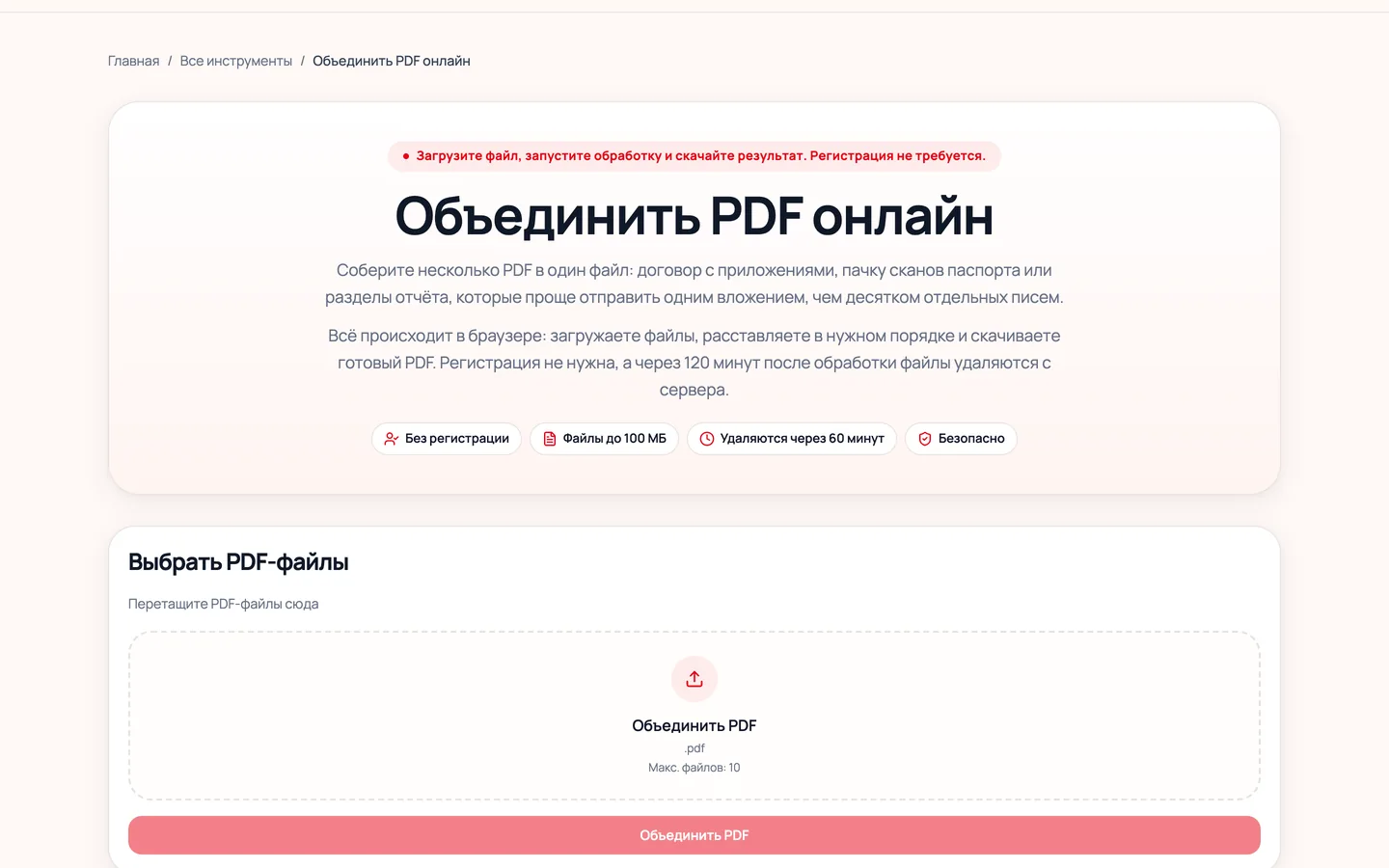
In short: To merge PDFs into one file, upload every document, set the order by dragging the rows or using the up and down arrow buttons, then combine. The pages come out in exactly the order the list showed. On a phone only the buttons work, because dragging in that list needs a mouse.
Cluster
how-to guide
Step-by-step instructions for getting a PDF task from input to a reliable result.
Primary tool
Merge PDF online
Open the tool from this article and complete the operation in the current locale.
Open toolTable of contents
- You set the order, not the program
- When parts of the package are in different formats
- Office documents
- Photos and scans
- Merging step by step
- Seams: where a package quietly falls apart
- Duplicate title pages
- Rotated pages
- Blank backs
- What carries over, and what does not
- The weight of the finished file
- When the merge will not start
- If the package will need reassembling
The contract, the annex and the invoice arrive as three separate files, and accounting wants a single document. Or you are assembling a visa package from certificates that trickled in over a month. The merge itself takes a minute. Everything else is spent making sure the pages land in the right order and that nothing goes missing at the seams.
Single files pile up because every participant sends their own part: one department prepares the contract, another the invoice, a third the certificate. Almost every intake system expects one file, so the package has to be assembled anyway. The only question is whether you assemble it once or three times.
You set the order, not the program
The tool does not guess which file should come first. It stacks the documents in the sequence they occupy in the on-screen list at the moment you press the button.
Counting on automatic sorting is the most common reason people merge twice. Filenames like `scan_1.pdf`, `scan_10.pdf`, `scan_2.pdf` sort alphabetically rather than numerically, so page ten lands in second place. Creation dates mislead too: a file that was re-saved carries a newer date than the document that logically follows it.
There are two ways to change the order. You can drag a file's row with the mouse, or move it with the up and down arrow buttons to the right of the name. If you are assembling the package on a phone, use the buttons: dragging in this list is built for a mouse and does not respond to touch.
Check the order against the numbers to the left of each filename. The upload list shows no page thumbnails, so verify by name and number, and inspect the actual content in the finished document.
When parts of the package are in different formats
Only PDFs can be merged. Anything that arrived in another format has to become a PDF first, then joins the rest.
Office documents
Word, Excel and presentations convert close to the original, though discrepancies happen: non-standard fonts and complex layouts suffer most. Check tables after converting, because a wide Excel sheet can spill across several pages or get clipped at the right edge. Fix that in the source by setting the print area, not in the PDF.
Photos and scans
A phone photo becomes a PDF as it is, carrying its resolution and its weight. Fifteen photos at 4 MB each produce a document of several dozen megabytes, which probably will not clear the intake limit. The logic here runs opposite to instinct: assemble the whole package first, then compress the finished file once. Compressing each photo separately takes longer and costs more quality.
| Input | What to do before merging | Tool |
|---|---|---|
| Word, Excel, PowerPoint | Convert to PDF, check tables | word-to-pdf, excel-to-pdf |
| Phone photos | Convert to PDF without compressing individually | jpg-to-pdf |
| Sideways scans | Rotate the pages | rotate-pdf |
| PDFs with drafts inside | Strip the extra sheets | remove-pages |
| Password-protected PDF | Remove the password | unlock-pdf |
Passwords behave differently depending on which kind you have. Protection that blocks printing or copying but opens without a password does not interfere with merging: those files pass through like any other. Only a document that demands a password to open is blocked, and the service says so plainly, telling you the file is protected and needs unlocking. No guesswork involved.
Merging step by step
1. Open merge-pdf and upload every part of the package at once. 2. Arrange the files by dragging or with the arrow buttons. Ignore names and dates. 3. Walk the list top to bottom by number and match it against the order your recipient expects. 4. Run the merge and download the result. 5. Open the finished file and check the seams rather than everything.
Seams: where a package quietly falls apart
The middle of each source file is almost always fine. Things break at the boundaries, because that is where you meet what you never saw while the files sat separately.
Duplicate title pages
If every department prepared its part as a standalone document, the package ends up with several title pages and several tables of contents in a row. Strip the extra sheets with remove-pages before merging, otherwise you will be reassembling.
Rotated pages
A scan shot sideways stays sideways after merging. Merging does not touch orientation. Rotate it beforehand with rotate-pdf so you are not hunting for the page inside the finished document.
Blank backs
A double-sided scan produces blank pages wherever the reverse side was empty. Individually they bother nobody, but a package of six files can collect a dozen blank sheets in the middle of a contract.
What carries over, and what does not
Beyond the pages themselves, a PDF holds a service layer: bookmarks, document properties, internal links. During a merge it behaves in ways people do not expect.
Bookmarks and tables of contents carry over from every source document. If the contract had section navigation and the annex had its own, the finished file contains both, one after the other. Internal links to sections survive as well.
Document properties work differently. The author, title and keywords of the result come from the first file in the list, and the metadata of the others is not blended in. In practice the assembled package inherits a title like "Invoice 4412 of 09.03" simply because the invoice happened to be first. A reviewer sees that name in the file properties, and sometimes in the browser tab. If it matters to the recipient, fix the properties with set-pdf-metadata after merging.
There is also a "Insert a blank separator page" option, which drops a clean sheet between documents. For a package headed to a printer and a binder that helps, because the parts do not visually run together. For a portal upload leave separators off: the page count grows, and a checking system may treat blank sheets as a defect.
The weight of the finished file
The final size adds up from all the parts and almost never comes out smaller than the sum. A package built from scans gets noticeably heavy.
Check the exact intake limit in your recipient's requirements: portals, mail servers and corporate systems all differ. The service's own current limit shows in the upload interface. If the finished file misses the limit, run it through compress-pdf. On text documents the difference is nearly invisible; on scans it delivers the biggest win.
When the merge will not start
The merge stops at the first file it cannot read, and the error names that file. You do not have to work through six documents to find the culprit.
If a file needs a password to open, the message says exactly that: the document is protected, remove the protection. Do that with unlock-pdf and the merge proceeds normally.
A corrupted file is a separate case. The service does not give up immediately: when a read fails it makes one attempt to repair the document's structure on its own, and that is often enough. The message about an unreadable file arrives only after that attempt. So it means something worse: the file downloaded incompletely, got truncated in transit, or it is not a PDF at all but a renamed `.docx`. Check by opening the document on its own in a normal viewer. If it will not open there either, you need the original file, not a different tool.
If the package will need reassembling
Plan for this while the documents are still under review and any part might be replaced. Keep the source files until the package is accepted. Rebuilding from six separate documents is easy; pulling one page out of a finished merged file and swapping it takes considerably longer.
If changes will be regular, assemble the package once and edit it in place afterwards: insert-pages drops an updated annex where it belongs, remove-pages strips what expired, organize-pdf moves sections around. A full rebuild is only necessary when the structure itself changes.
FAQ
More from this cluster
how-to guide
How to convert PDF to editable Word
The file opened in Word but the cursor will not go into the text? Why the default gives you a picture, how flowing mode differs from exact, and where the running headers went.
how-to guide
How to Extract Tables From PDF to Excel
PDF into Excel: which sheets end up in the downloaded workbook, how the three detection modes differ in practice, and why loose mode finds more tables but breaks words apart.
how-to guide
How to Extract PDF Pages to a New File
Pulling the sheets you need out of a PDF as a separate file: how the two output modes differ, why the files in the archive keep the original page numbers, and what turning off size preservation does.
Related tools
Merge PDF online
Combine several PDFs into one file: a contract with its attachments, a stack of ID scans, or report sections that are easier to send as a single attachment than a dozen separate emails.
Organize PDF online
Put your PDF pages in the right order. Move pages, check the structure and download the updated version.
Split PDF online
Split a PDF into individual pages or extract specific page ranges, for example pages 3 through 7, right in the browser.
Compress PDF online
Reduce the size of a PDF so it is easier to email, upload or store. Especially useful for scans and documents with images.
What to do next
All tools
PDF tools catalog: merge, compress, split, convert, rotate, protect and unlock PDF files online, all directly in your browser.
FAQ
Answers to common questions about iHatePDF: whether registration is required, how files are processed, where to check limits, and whether it's safe to upload documents.
Contact
Contact iHatePDF about processing errors, choosing a tool, security, business inquiries, and suggestions for new features.